After a request has been created, it can then be assigned to drivers, who will be notified of the case and can begin the process of picking up and delivering the decedent.
To assign requests, a user must have Dispatch access.
The Dispatch page is split into two major portions: the left-side lists current cases that can be awaiting review, or are active and assigned to drivers, while the right-side features a map with icons for drivers and pins in pickup and drop-off locations.
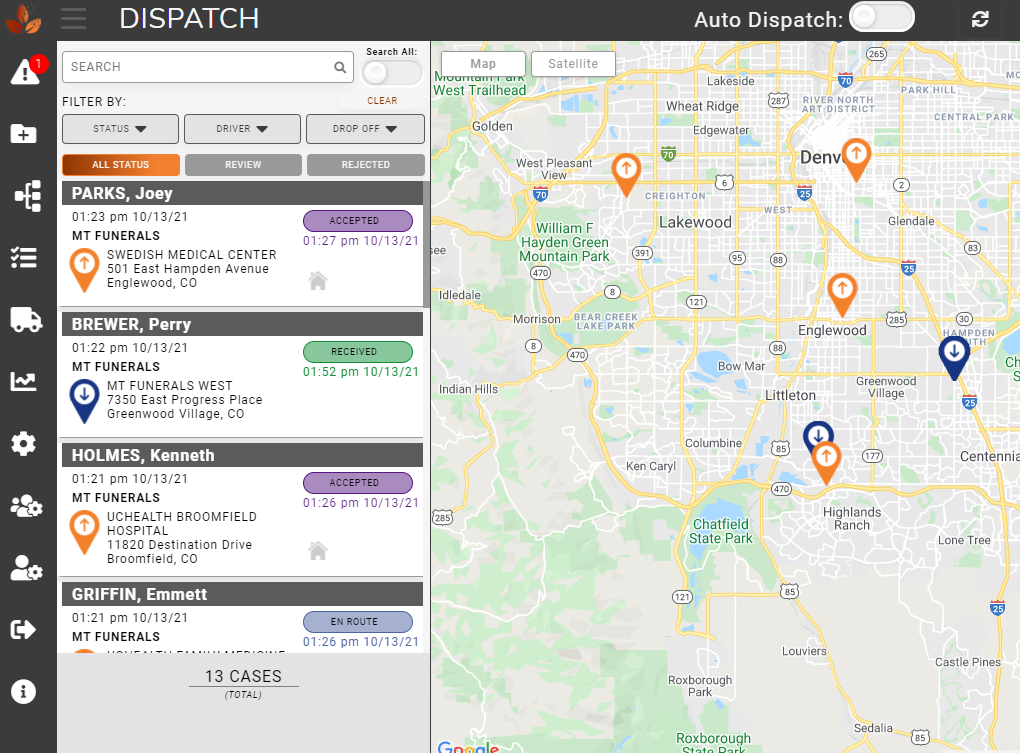
When a new case is created, it will be listed on the Dispatch page with a Review status, indicating that the case’s details have not been clicked on and viewed yet. After a dispatcher has clicked on the case, its status will be updated to Pending, which means it has yet to be assigned to a driver.
Assigning a Case to a Driver
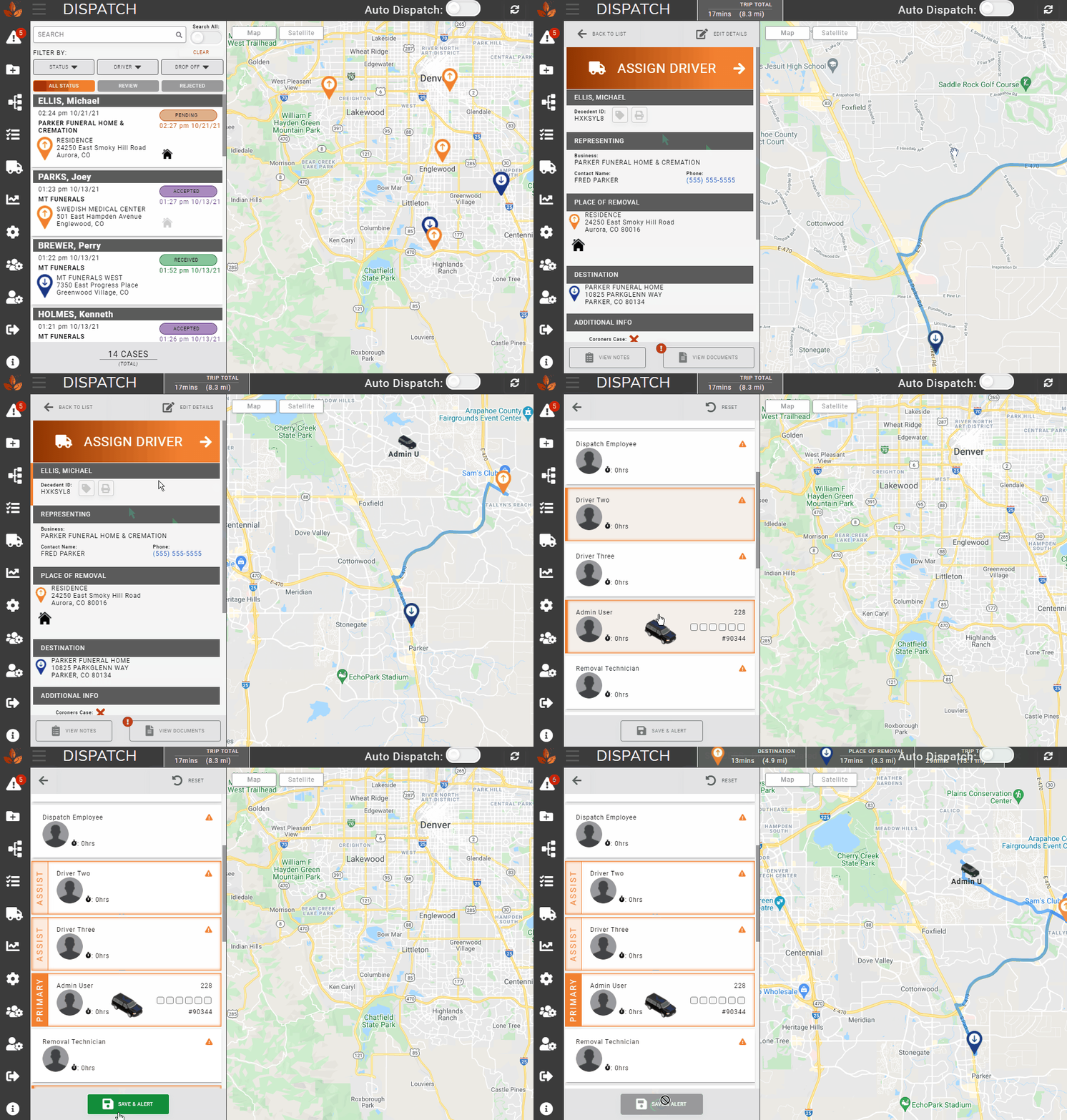
After clicking on a case, the left side of the Dispatch page will change to display the case details. The information present here will be based on the information entered when the case was created. The map will focus on the pickup and dropoff locations relevant to the selected case.
To assign a driver, click on the Assign Driver button.
The map will display vehicle icons to represent the current location of drivers who are both signed into the MorTrack Driver app and who have their mobile device’s Location Services enabled for the app.
After clicking on the Assign Driver button, all drivers will be listed. Drivers who have a vehicle checked out will have a vehicle icon present and a series of boxes, which represent the current capacity for decedents that the vehicle has available. In the example below, the “Funeral Assign” driver has two available spots for picking up decedents.
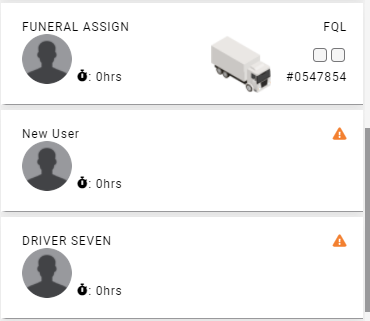
Users who are not signed into the MorTrack app or have not selected a vehicle will have a warning icon, as shown with the two users above.
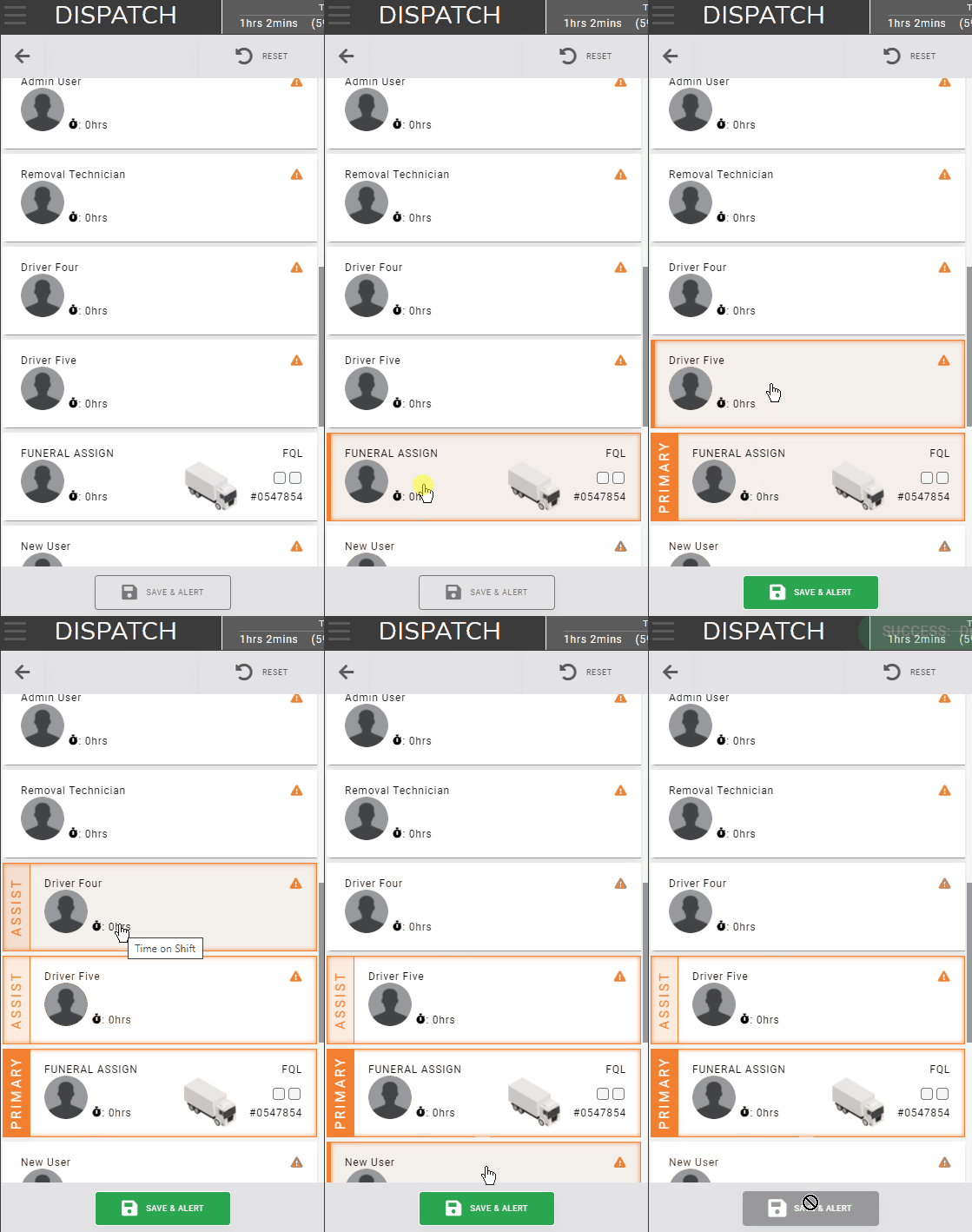
The first driver selected will be designated as the Primary driver for the case. Any number of additional drivers can be clicked on afterwards, and each one will be designated as an Assist on the case.
To de-select a driver, simply click on them again.
After all drivers have been selected, click on Save & Alert to save the assignments and send a notification to the selected drivers of their new case. This will change the case’s status to Assigned, to indicate it has been reviewed and dispatch has selected drivers.